Showing posts with label 3.5-Learn Env: Ethics. Show all posts

Friday, 2 May 2014

Assistive Technologies in Biology

ASsistive Technologies in Biology

Students with Cognitive Difficulties
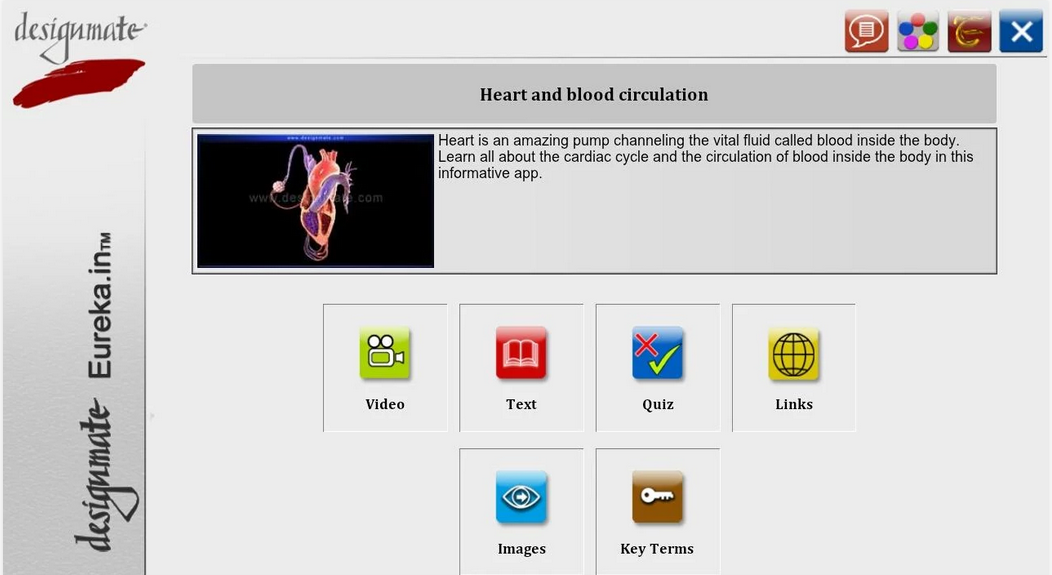

Apps such as Designmate’s Heart and Blood Circulation bring multimedia content, images, videos, screen readers, audio, quizzes with feedback, and key term glossaries together into one place. Students with cognitive processing difficulties can use the various media to enable them to access the biological content.


e-Bug is a digital learning environment that is animated and fun to navigate. Microbes are everywhere in the site and there are some very nice activities to do in and out of class. Quizzes and Games make this a great site for students with knowledge retention issues. The site is differentiated by the UK key stages; the earlier contact can be accessed by older students in order to help scaffold their knowledge.

Websites can be blocked, monitored for time, even keywords can be "turned off" during set times each day. If needed, you can set certain sites for time spent and add them to sets to block or unblock. Individuals that struggle to maintain concentration

Readers can control the text-to-speech in the books that MeeGenius is available for. The control offers students with processing disorders the chance to access the text at their own rate.


Students with Physical Difficulties

The virtual microscope benefits individuals with an array of difficulties. The site reads the the instructions and has a large image of a microscope that is easy to see. The instructions link with arrows and highlights to draw attention to the microscope. Individuals with limited movement but can access a mouse can learn to use the microscope.

Carolina’s digital microscopes have LED screens attached to the top of the device enabling the user to see the image of the slide without having to stand over the microscope; idea for wheelchair bound students. The microscope can be hooked up to a screen or projector to provide even larger viewing for those students who have trouble seeing the detail on the LED screen.

Google Voice allows students with motor skills impairments to access the search functionality of Google on a Chrome browser to enter search queries. The translation is remarkably accurate and is very fast.


Speak-It is a Chrome extension that reads multiple languages in male and female voices. German, French, Spanish, Italian, Russian, Chinese, etc.
This extension can be used for visually impaired individuals from these international backgrounds.
This extension could also be used to give Gifted and Talented language students listening tasks from native language web articles.


Students with Sensory Difficulties



Chromevox was developed by Google to provide accessibility tools native on the Chrome OS. It has a screen reader that can read single letters up to full paragraphs and is ideal for individuals with visual impairment. The speech can be altered in pitch and speed making the voice easier to listen to - lower pitch sounds older while higher sounds younger - the listener can choose the voice type they associate best with.
For unimpaired individuals that want to listen but can do so at a faster rate of speech, speeding up the speech can be achieved with this extension.

The page contains several links for webpage accessibility for the visually impaired. The page has been assessed at the highest level of high contrast colours.
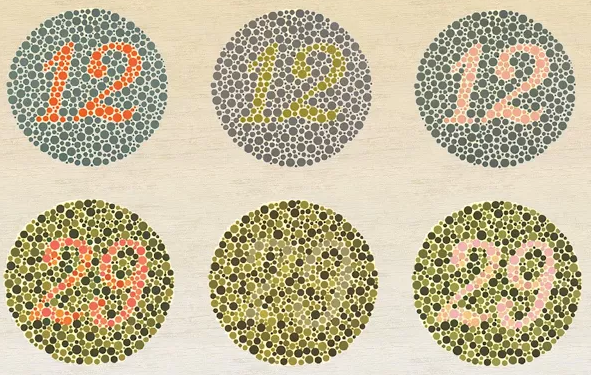


Daltonize is an extension that enhances colour contrast on webpages in order to allow colour blind individuals (tritanope, deuteranope and protanope) to tell the difference in colours. In the Biology class, this extension can also be used to simulate what colour blind individuals perceive; teachers can use the extension to develop material that use colours that work to generate the best contrast.


At-Risk Students

Careers
The ASPIRES site brings students into contact with careers in science. The lessons and activities are designed to give students the opportunity to see the possibilities beyond their immediate situation and motivate them to lift themselves out of their situation. The site has 11 case study lessons that help students take on the role of scientists.


Videos/TV shows and YouTube: Brainiac Science Abuse


There is much in science that cannot be replicated in the laboratory. Some Biology can be a bit “boring” and boredom can lead to misbehaviour by those students who, for whatever reason, are unable to focus in class. Targeted use of exciting media like Brainiac and Richard Hammond’s Miracles of Nature will help to allow troubled/at risk students focus and access the curriculum.

Interactive Narratives: N-Squad
The N-Squad site by RICE university has a module on Alcohol and its effects on the body. This digital animated narrative can be used to engage students from lower socio-economic backgrounds that tend to resort to alcohol abuse. The site educates the learner enabling them to make informed choices in their real life. Alcohol, nicotine and other drugs are embedded in the National Curriculum for Key Stages 3, 4 and 5. While they are considered pastoral issues, the Biology teachers address the “mechanics” of the drugs in the Biology class.
Games: Nobel Prize
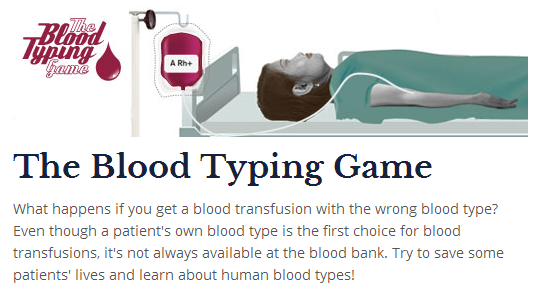
The Nobel prize site provides games and animations that students can use and play to follow in the footsteps of the Nobel Prize winners of the past. Some schools will not permit blood in the classroom which can make the topic of blood, which is potentially very interesting, rather boring. Interesting and engaging games such as those offered by NobelPrize.org may be just what the bored and distracted student needs to stay on task.

Zondle and IAmLearning
Zondle and IAmLearning are games platforms with Gamification and Games As Rewards mechanics built into them. Science and Biology lend themselves to the types of questions that are available in these platform and “At Risk” students may find these mechanics engaging, allowing them to access the curriculum in a fun way. Students may not realise they are learning while they play and the quizzes record and report to the teachers the students progress avoiding the need for stressful summative tests.


Gifted and Talented Students

Speak-It is a Chrome extension that reads multiple languages in male and female voices. German, French, Spanish, Italian, Russian, Chinese, etc.
This extension could  be used to give Gifted and Talented language students listening tasks from native language web articles. It could also be used to assist students in their learning in a second language medium as the voices mimic stereotypical accents well for the language; assisting in the pronunciation of the written word.


This website provides engaging and challenging biology content including simulations, and videos, and online lab activities. Students with strong independent learning skills can access content from Stem Cells to Pharmacogenomics - the activities extend the classroom and allow G+T students take their studies to a university standard thus enhancing their breadth of knowledge at A-Level.
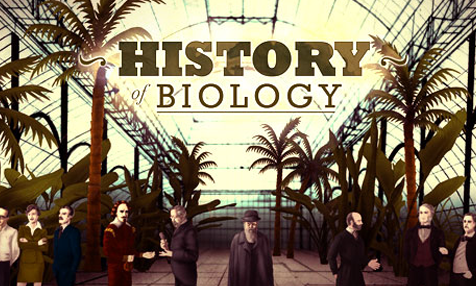


The History of Biology Game is a puzzle based game that takes the student all over the internet trying to solve biology puzzles from the development of the first microscope to synthetic organisms: it is HARD! G+T students in the A-Level biology class can  attempt to apply their knowledge of biology - protein synthesis and DNA replication - to the challenges in the game. Applications of the content studied at A-Level need to be used to successfully complete this game.

Tuesday, 29 April 2014

Accessibility features on Google Chrome

I am a big fan of Google's Apps. I am aiming at finding an app or extension for Chrome for all of my laptop related activities so that I don't need to rely on a particular platform in future. The extensions on Google Chrome seem to meet the needs I am looking for.
For this post, I have decided to look at the assistive technologies I can find for Google Chrome, Chrome OS and Chromebooks, along with apps/extensions that might be considered assistive. To start with, I tried some Speech-to-Text apps and voice recognition:
"I'm trying to test this speech to text app . I'm finding that i have to speak slowly, and pronounce my words very carefully or not recognise the words . speaking this lonely is quite difficult than i don't enjoy doing kama it is making process of getting information into the computer slower and harder than i would be normal the avengers persistently mess recognises my location of the world, c o m n s . I would like to be able to say delete and have the word you said be deleted i still have to use my hands to do that ." 
The App that produced this result was Dictation.io; it struggled somewhat with my accent I think! I two things that amused me were: 1) it didn't recognise the word comma in a sentence, 2) didn't recognise period in regards to a  lesson. In a effort to get the recognition to realise I didn't want a comma or full stop inserted, I tried to speak quickly through the sentence; this had an effect but the recogition began to struggle with the speed. 

I tried saying the same sentences to Google's Voice Search and I found that the recognition here was much more accurate and could deal with my pronunciation!

The SpeakIt extension for Chrome was very impressive. I used it on the various language settings and speakers on the different languages on Wikipedia - I was convinced I was listening to native speakers of the language. Highlighting the text and letting the extension read could be used not only for individuals with visual impairments but for first and second language learners.

The Chromebook comes packaged with an accessibility toolkit called ChromeVox. This is another screen reader that can navigate the browsers menus and can be set to read each letter or the whole paragraph by tapping the keys. What I found most interesting about this app was that it allows the alteration of the speed and pitch of the voice; higher pitches sounded younger and faster speeds allowed the page to be read faster. Depending on preference of the listener for young/old and male/female, a listener can engage more or less based on an environmental predisposition for a voice allowing them to access the content better. Learners with processing speed issues can use the slower speech in order to allow that to access curriculum better. J.J. Meddaugh of the American Association for the Blind comments on Chromevox on the association's site"
"Overall, the browser is able to decipher and present a variety of webpages with relative ease, which is probably one of its strengths when it comes to accessibility."
"ChromeVox could use some improvements in speaking notifications and progress bars as it often gives no feedback, which can lead to confusion and frustration."
Clearly there is some room for improvement where full accessibility is concerned but Google are on their way to meeting the needs.

These were the typical app types and extensions available but I am interested in colour blindness as at least one student in each year I have taught over the last 10 years has had the genetic condition in some form. From my investigations, Microsoft and Apple do not have specific colour blind accessibility options so having the ability to enhance Chrome with Daltonize seems useful. The extension can be applied to a webpage and it will enhance the contrast of the colours that each of the three main colour blindness types need in order to better see the differences in colours: protanope, deuteranope and tritanope. I visited various image and colour heavy sites and tried out the extension; my student will test it to see if it helps him!


References

Meddaugh, J.J. (2013). A First Look at the Accessibility of the Google Chrome Operating System. Retrieved from: http://www.afb.org/afbpress/pub.asp?DocID=aw140502


Sunday, 20 April 2014

Privacy, Permissions and Digital Footprints

I have read many Acceptable Use and Social Media Policies and they come in various degrees of strictness and completeness. I believe that there needs to be a set of rules that are followed but also that everyone "buys in" to the concept of the policy and the guidelines within. I have recently developed a set of guidelines for the use of Google Apps for Education for my students. I presented them to a target group and have asked that they review them and discuss any improvements or to let me know if they are too strict; this has generated very positive feedback about the guidelines from my students. The policy below is for teachers. It was created as part of a collaboration so it encompasses input from perspectives that my teachers may not feel is right for them. I will request that my teachers are given time to review the content of any policy/guidelines as I have with my students since they are more likely to abide by the rules if they write them!


Saturday, 29 March 2014

Using the Internet for Instruction

I like Collaborative Problem Solving and have chosen the Webquest model by Bernie Dodge; Webquest.org, for this project. I have used this format for another lesson as part of Edtech 502 which you can view here.

Stem Cells is a good lesson for students to do research on, but the topic is huge. I want the students to focus their research on specific sites to save them time and point them at the content they need. The links I provide are still to many for one student to work through in the time allotted, the students need to work cooperatively and collaboratively to complete the task effectively.

Ethics 1.2 Shall protect the individual rights of access to materials of varying points of view. The concept of "Intellectual freedom" advocates the right of individuals to explore a wide range of information and opinions. Library, media, and technology professionals often have a major influence over access to materials and other information resources that are available to learners. It is essential that this access be guided by a policy that ensures availability to a broad range of information, ideas, and opinions.

Monday, 24 March 2014

Monday, 17 March 2014

Internet Safety


With my school on the verge of releasing Google Apps For Education, the possibilities for students to stray over the line of appropriate, either on purpose or by accident, is quite high when it comes to the sharing of their content online. Google+ will be accessible by my 15 year old students and above within our domain.

For some time now, I have had my students create an e-Exercise book in Google Drive that has their notes, images and videos from their science lessons embedded. The students find uploading their videos to YouTube and embedding them into their Drive files so easy that it is their preferred choice. Before I would let them do this, they had to show me that they could change the settings to Private and only share with the email addresses they specified; they also had to give me a few reasons why they should keep themselves safe in this manner. They know the right words to say but they are naive and don't really see the risk; perception of risk and actual risk are two different things and when a threat isn't directly in your face, it is out of mind!

In preparing the social networking guidelines for our transition to GAFE, I used all of the resources below. I liaised with the Pastoral Leaders in the school and the ICT specialists as they teach the topic of e-safety each year. I also spoke with the librarian; the librarians are very strongly versed in Digital Literacy and advocate the The Big 6 in regards to searching online, however in this case the librarian felt that the greatest experience lay with the other pastoral and IT teachers with whom I had already spoke.

I was very pleased to find that the pastoral team has a module specific for e-safety and Digital Citizenship. I am not a Form Tutor and so I do not teach this element of the pastoral curriculum so I took time to sift through the curriculum on e-safety and drew together elements from what we already have and what would be better for e-safety ion social networking scenarios.

The following is a list of points our students should aim to consider when they are posting online or are in online communities. Our teachers will be expected to model and teach our students about these:


  1. Privacy Settings
    Keeping posts shared with those people you want to have look at your stuff. Remember public means anyone can see!
  2. Think before you post
    What one person thinks is funny could be very hurtful to another. If your mother wouldn't like to read or see what you have posted, don't post it!
  3. Consider the photos you upload
    The nature and impact an image has when posted online, the attention it draws and the people that can view it need to be considered!
  4. Know how to report inappropriate behaviour
    Does the social network itself have a reporting feature? Which teachers can you report to? Tell you parents? Cyberbullying is against the law; CEOP.
  5. Online friendship
    Keep your personal information off you profile, don't give your full name, DOB and address, and only accept friendship requests with people you are actually friends with In Real Life.
Another behaviour students should get in the habit of doing is logging themselves out of their accounts after using a public machine. We have bookable iPods, iPads and laptops and students like to leave their Google Drive accounts logged in; full access thank you!


Resources:
Kidsmart: http://kidsmart.org.uk/
Digizen: http://www.digizen.org/

Saturday, 1 March 2014

Communication: Podcast for Professional Development

Podcasts for Professional Development

Podcasts are a convenient way to reach many people. As a leader, I can publish my views on technology with a human voice; emotion included. My listeners can subscribe to my podcasts and have the latest casts automatically downloaded onto their mobile devices. Personally, I like to listen to the podcasts I subscribe to as I drive to work; I can't read as I drive but I can still consume the latest goings on in the fields I am interested in. Podcasts allow listeners to come into contact with my ideas for using technology at a time that suits them and they can be doing something else as they listen! Teacher time is precious and finding a way to offer them PD without taking more time seems like an ideal use of technology.


Monday, 12 August 2013

Webquest

http://edtech2.boisestate.edu/martinmullan/502/webquest/start.html

The Webquest, made popular by Bernie Dodge, is a structured learning environment for students to find resources that support the production of an object for their learning. In this case, the theme of the webquest is Animal Testing. 

The "Triple Impact" self/peer/teacher assessment is a powerful pedagogical tool for enhancing the students work. Reflection and feedback at multiple times throughout the process increases the quality of the final product. Ertmer points out that "Students noted that peer feedback can be valuable and, more importantly, described how giving peer feedback not only reinforced their learning but enabled them to achieve higher understanding" (Ertmer, 2007)

This was the final object I created in this module and encompasses all the elements of the other modules; accessible and responsive design, with appropriate copyright usage demonstrated.

I find the webquest structure itself useful, but elements of it are somewhat redundant and repetitive. In the future when I create a webquest, I will not include all of the elements as a result of my learning on this task i.e. the introduction, task and process pages can all be one, and the teacher page does not have to be included for the students to see.


Ertmer, P. A., Richardson, J. C., Belland, B., Camin, D., Connolly, P., Coulthard, G., et al. (2007). Using peer feedback to enhance the quality of student online postings: An exploratory study. Journal of Computer‐Mediated Communication, 12(2), 412-433.

Thursday, 1 August 2013

Mobile Learning

http://edtech2.boisestate.edu/martinmullan/502/mlearning.html

The mobile learning task was not required for the course but I did it anyway. Using Dreamweaver's responsive template designs I was able to adapt my other CSS stylesheets to be mobile compatible. The responsive design works well in PC, tablet and smartphone sized screens, enabling students to access the info as efficiently as possible while studying offsite. 

The best practice of creating a resource that fits the most devices possible iin order to enhance accessibility is highlighted by this object.

Monday, 22 July 2013

Copyright Scavenger Hunt

http://edtech2.boisestate.edu/martinmullan/502/scavenger.html

The copyright scavenger hunt is a learning resource that guides teachers and students to answer questions about copyright abuse, plagiarism and fair use. 

After doing the research and building this object, I have a new respect for doing things the right way. Teachers tend to take if they can get their hands on resources, and use them as their own. I have made it my goal to not do this again and have been in contact with companies regarding the use of their materials within the confines of our school's domain.

In order to instill a sense of responsibility in my students, I have begun to include a referencing section in all of my rubrics in order to push the students to identify from where they have been taking the media they find for their work. It is slowly getting through to them that if they didn't build it themselves, they need to say who did!

Monday, 8 July 2013

Netiquette

http://edtech2.boisestate.edu/martinmullan/502/netiquette.html

Netiquette is a set of rules that outlines socially acceptable behavior when you are communicating online. Students need to be taught how to behave and how to keep themselves safe online; this webpage highlights my ability to create HTML5 and CSS webpages but also the rules and guidelines I foster in my students.

Tuesday, 11 June 2013

AECT Standards 2012: Learning Environments

AECT Standard 3 - Learning Environments: 
Candidates facilitate learning (p. 41) by creating, using, evaluating, and managing effective learning environments. (p. 1)

Indicators:
• Creating - Candidates create instructional design products based on learning principles and research-based best practices. (pp. 8, 243-245, 246)
• Using - Candidates make professionally sound decisions in selecting appropriate processes and resources to provide optimal conditions for learning (pp. 122, 169) based on principles, theories, and effective practices. (pp. 8-9, 168-169, 246)
• Assessing/Evaluating - Candidates use multiple assessment strategies (p. 53) to collect data for informing decisions to improve instructional practice, learner outcomes, and the learning environment. (pp. 5-6)
• Managing - Candidates establish mechanisms (p. 190) for maintaining the technology infrastructure (p. 234) to improve learning and performance. (p. 238)
• Ethics - Candidates foster a learning environment in which ethics guide practice that promotes health, safety, best practice (p. 246), and respect for copyright, Fair Use, and appropriate open access to resources. (p. 3)
• Diversity of Learners - Candidates foster a learning community that empowers learners with diverse backgrounds, characteristics, and abilities. (p. 10)

NOTE: Parenthetical page references are to Educational Technology: A Definition with Commentary (2008, A. Januszewski & M. Molenda, Eds., Lawrence Erlbaum Assoc.)